POSSR Navigation (Premier & Select Users)
This article contains the following information:
When you log into POSSR, you will arrive on a welcome page for Ri-BIT:

You will notice there are 2 tabs: Ri-BIT Dashboards and Library.
Please view our Ri-BIT Navigation article for an in-depth overview of your Ri-BIT dashboard.
Library
Clicking on the Library tab will bring you to your library. Here, you will see all reports and files that have been shared to you.

Double click on any folder icon to expand your view. Click the Open All button at the top of the page to expand all folders. Click a file to download the file to your desktop.
My Profile
Above the Ri-BIT and Library tabs, you will see a link to My Profile where you can update your contact information and preferences:
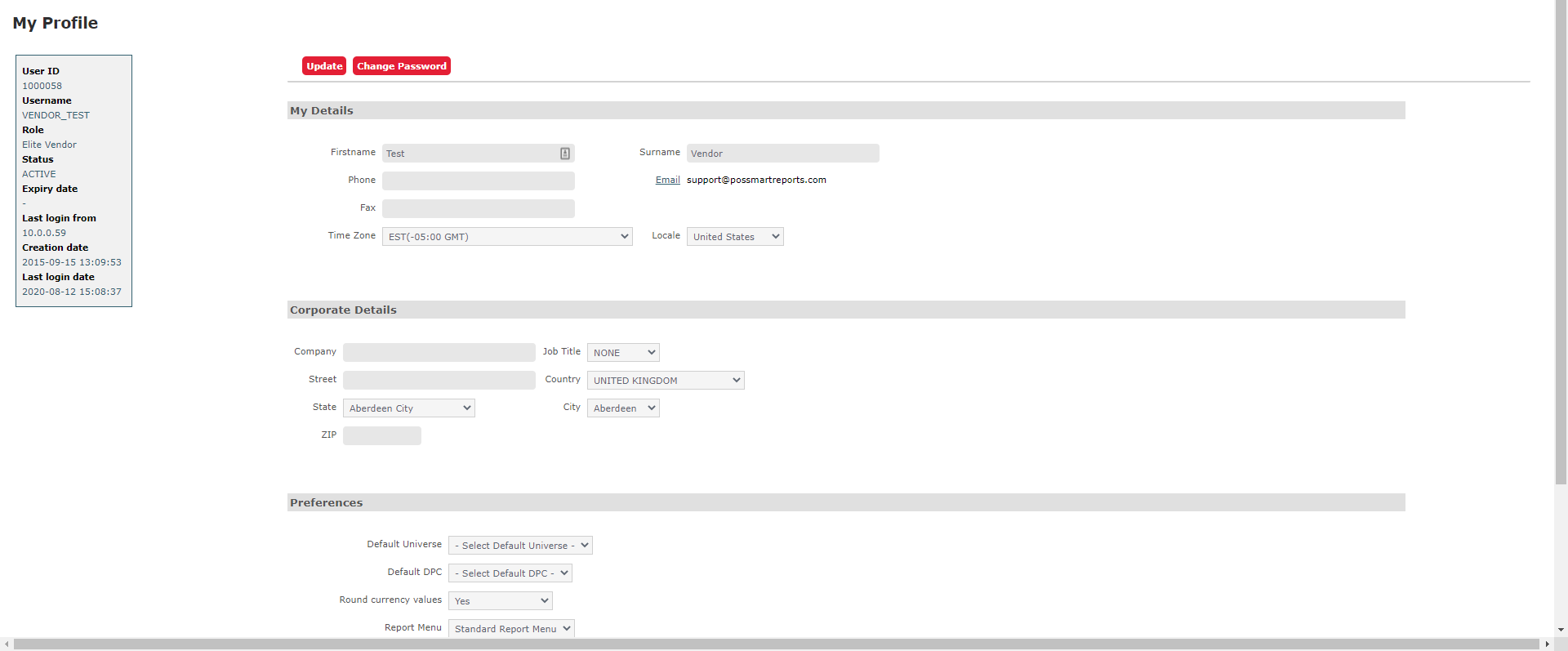
The first two sections of the page allow you to update yourself and your company's contact information. If you need to update your email address, please contact our support team by clicking the Contact Us button at the top right of your screen.
The last section, Preferences, allows you to update how you view your POSSR portal. You can choose to update your Landing Page to Library (it is automatically set to Ri-BIT) and you can choose a default Ri-BIT dashboard.
Once you have completed your updates, click the Update button.
Change Password
You have the option to change your password or memorable word by clicking on the My Profile link at the top of your page. Click on the Change Password button to reset your password.

You may choose to only reset your password, only reset your memorable word, or reset both. Prior to resetting, you will be required to enter your security code. On the right side of your screen, you will see where and when the security code was sent to you.
Logging Out
Next to the My Profile button, you will find your Logout button. Clicking this button will bring you back to your Login page. If your POSSR page has been inactive for 8 minutes, you will see a warning that POSSR will log you out in 120 seconds. You may choose to continue with your session, or logout. If no choice is made, POSSR will automatically log you out after 120 seconds.